Calendar
Overview
Module Selection
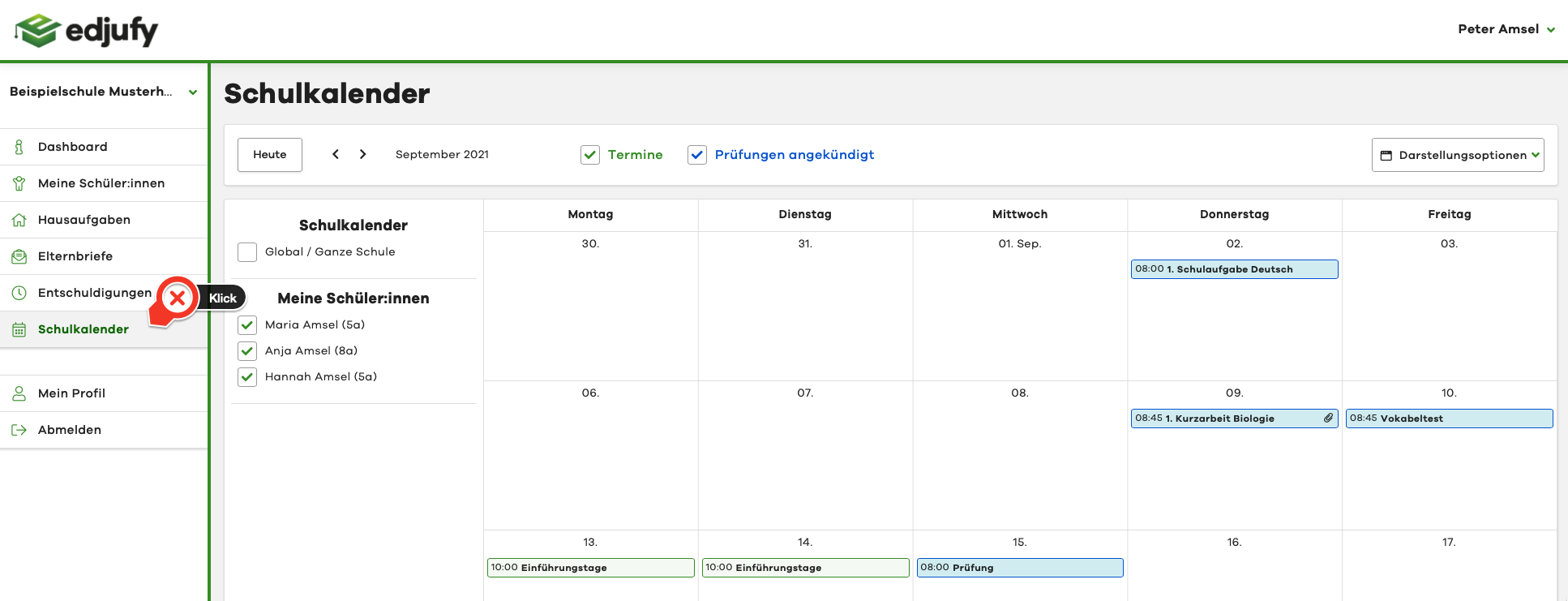
To access the edjufy school calendar, please click on Calendar in the left menu bar.
Options
Select Pupil / Calendar
Using the calendar/pupil selection, you can show and hide the desired calendar entries.
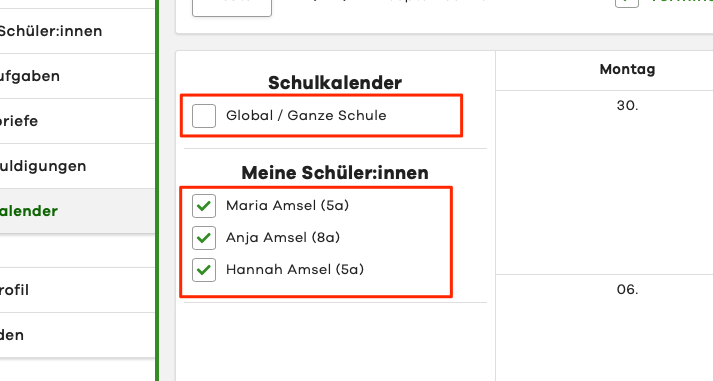
If you have multiple pupils at the same school, please select the corresponding pupil.
Month Navigation
Using the two buttons with arrows, you can switch between different months. Clicking the Today button will jump the calendar to the current month.

Appointment Types / Colors
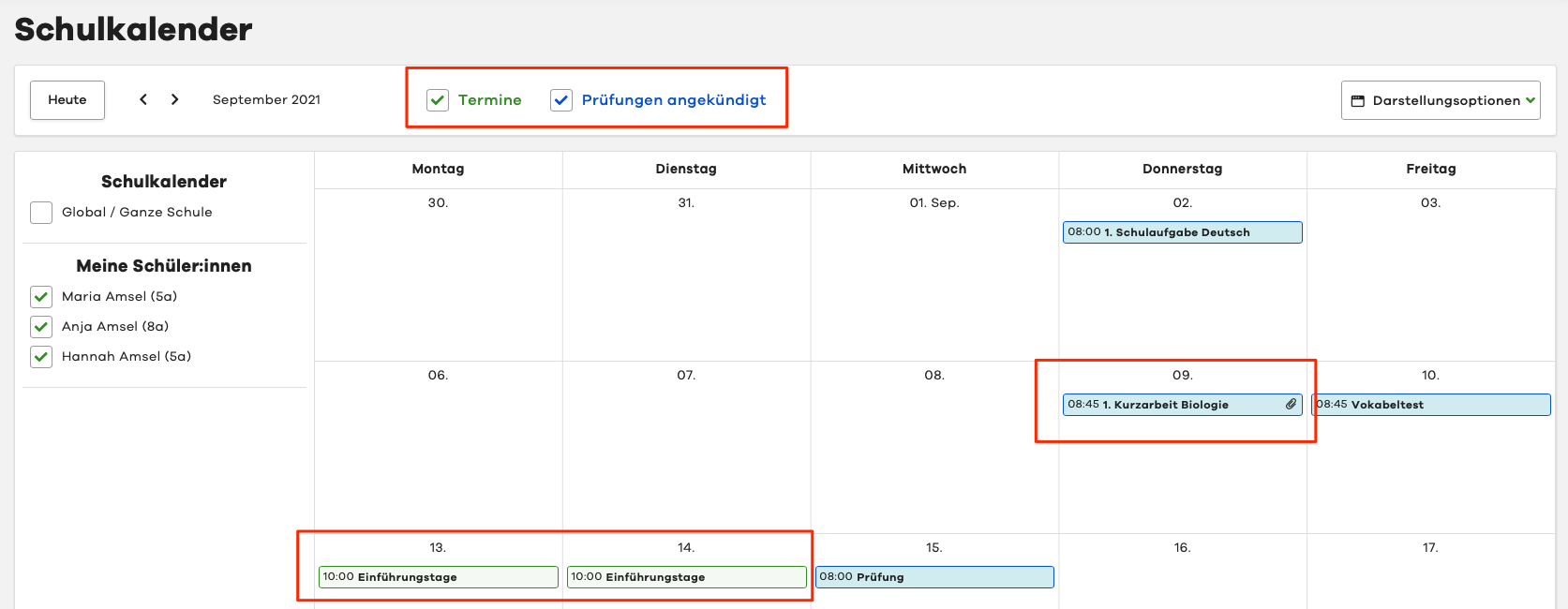
In the edjufy calendar, we work with different appointment types and different colors. "Normal" appointments are displayed in green in the calendar and announced exams/assessments appear in blue. Please note the visibility settings for the pupils you previously selected.
Appointments in Calendar View
Quick Info
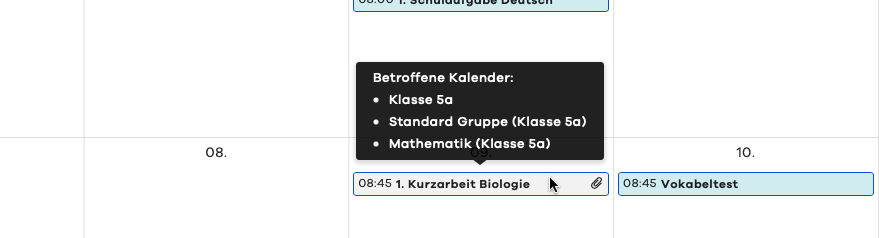
To get a quick overview of an appointment entry, simply move your mouse pointer over the desired appointment without clicking on it.
Attachments
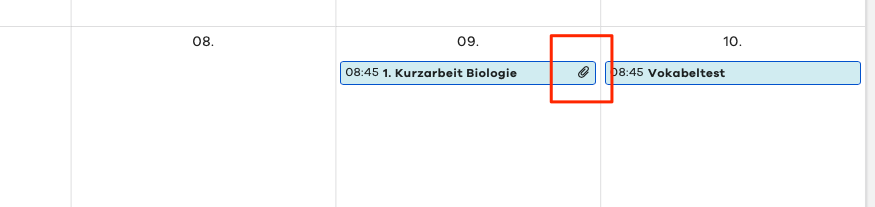
Appointments with an attachment (e.g., study material for an exam) are marked with a small paper clip.
Appointments in Detail View
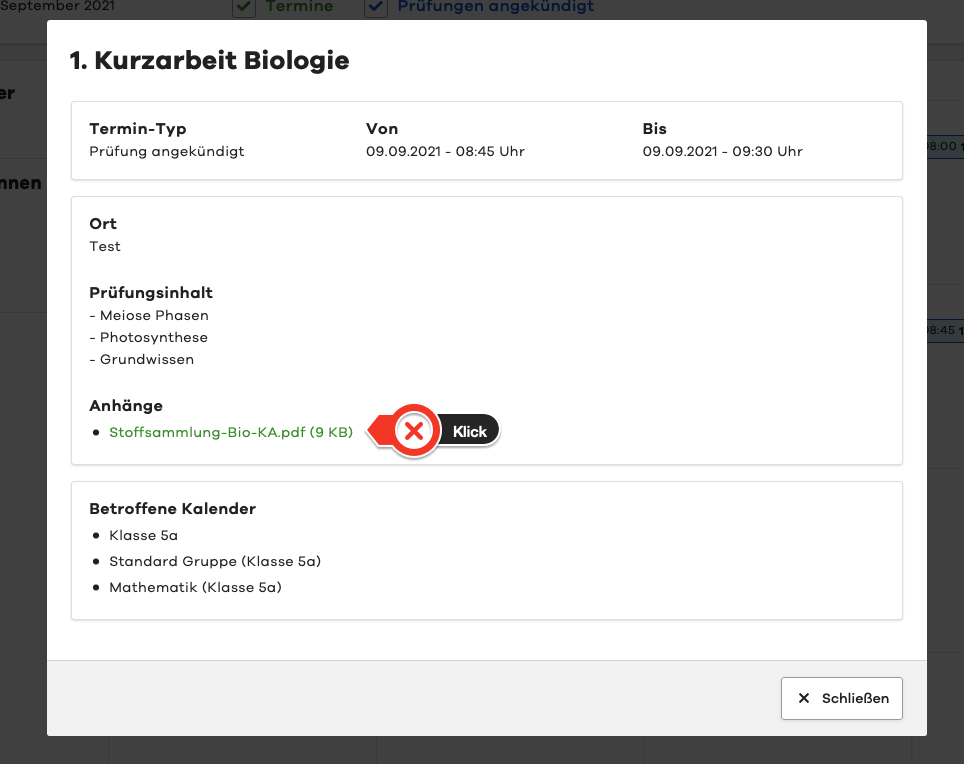
Click on the name of the desired calendar entry for a detailed view.
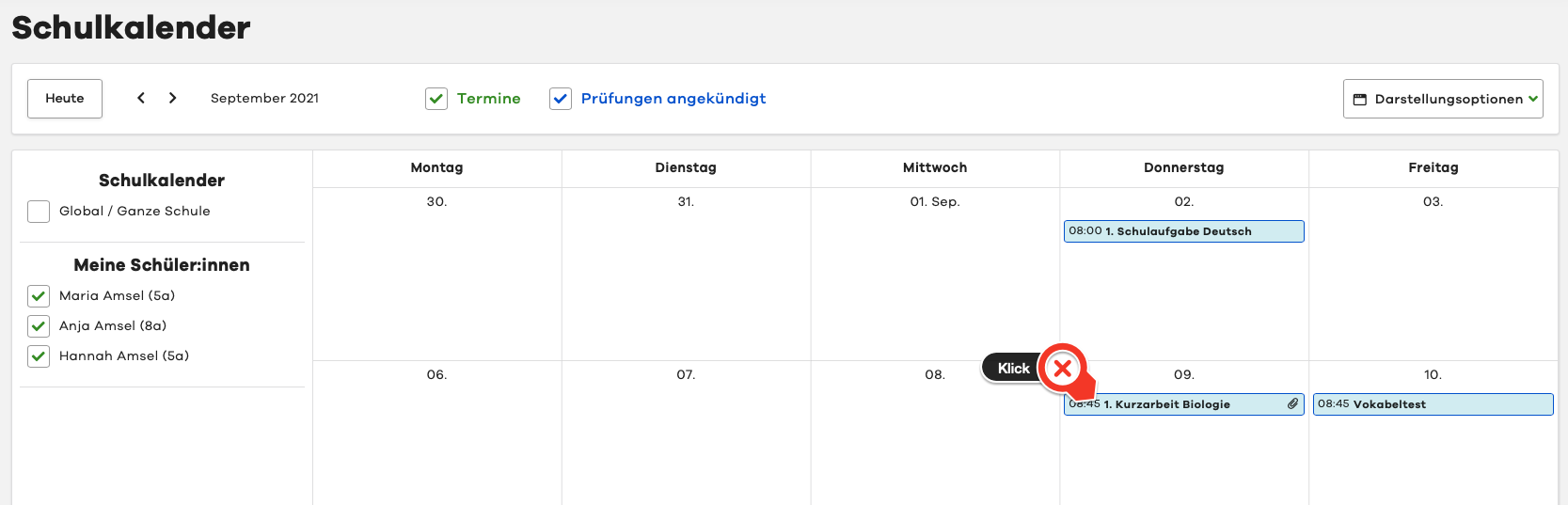
In the following view, you can see all details about the calendar entry. Any attachments such as study materials can also be downloaded here.