Create Excuse
Login
To create an excuse with edjufy, simply log in to edjufy with your personal credentials. To log in, please open the following URL in your browser: https://my.edjufy.com and select the "Excuses" menu item in the menu bar on the left side.
Overview
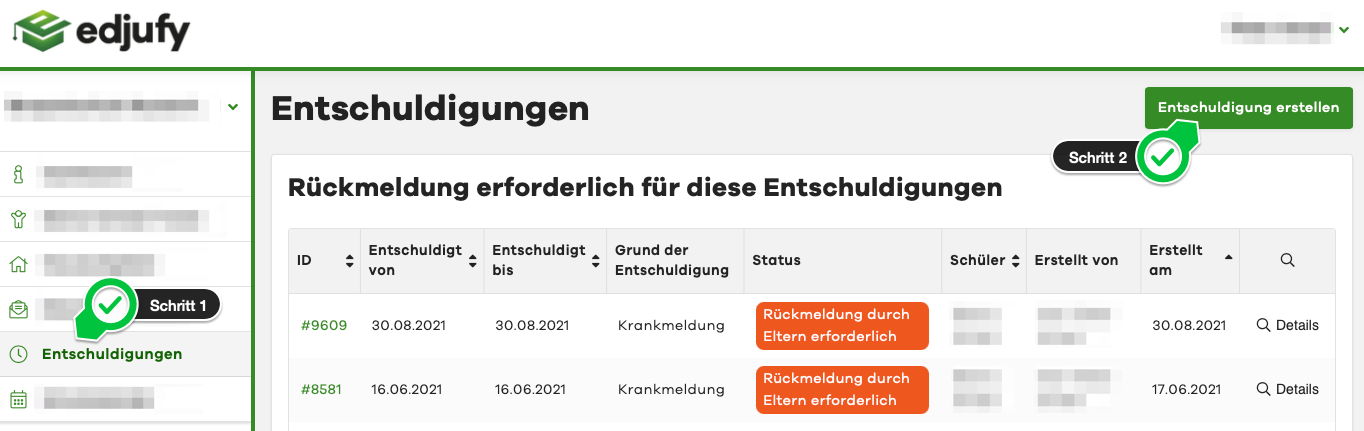
Select the "Excuses" menu item in the menu bar on the left side.
To create an excuse, click on the green Create Excuse button in the top right.
Create Excuse
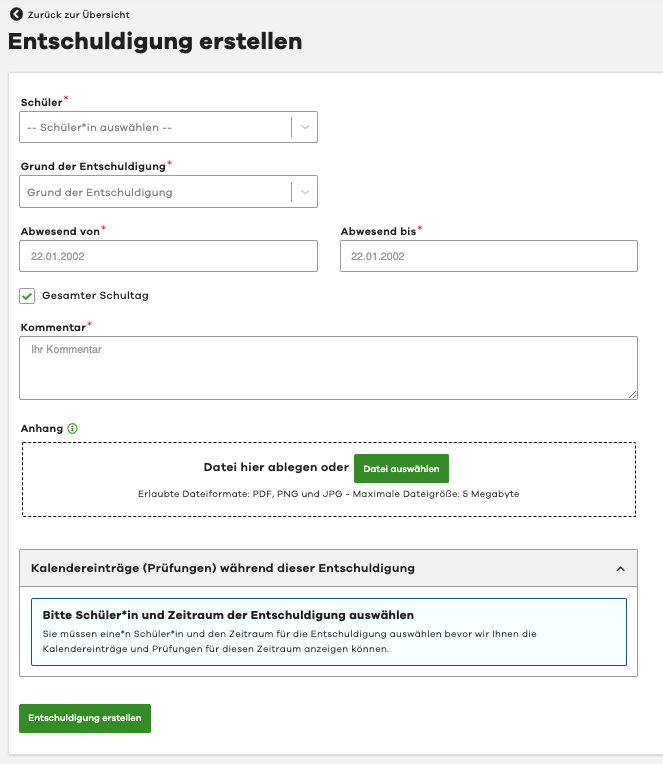
To create an excuse, you must fill in all required fields marked with ***. To submit, click on the green Create Excuse button in the lower left area of the excuse.
Status
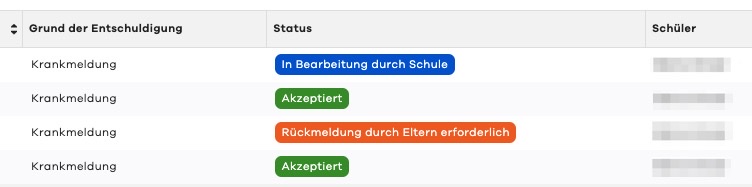
Once the excuse has been submitted, it still needs to be confirmed by the school. You will be informed about the processing status in the Status field.
Comments
For any questions or information, please use the Comment section in the excuse. If you selected "Other" as the excuse reason, additional information must be provided here.
Attachments
A medical certificate can be added during excuse creation (if available) as well as subsequently. Click on Add File and select your desired attachment. When creating via a mobile device, you also have the option to submit a photograph of the certificate as proof.
Calendar Entries and Exams
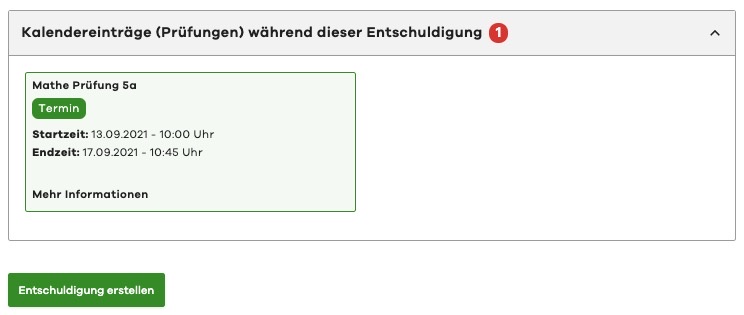
In this section, all important appointments and announced exams for the period of the excuse are displayed.
All appointments and exams listed there are for information purposes only and have no negative effect on the excuse.